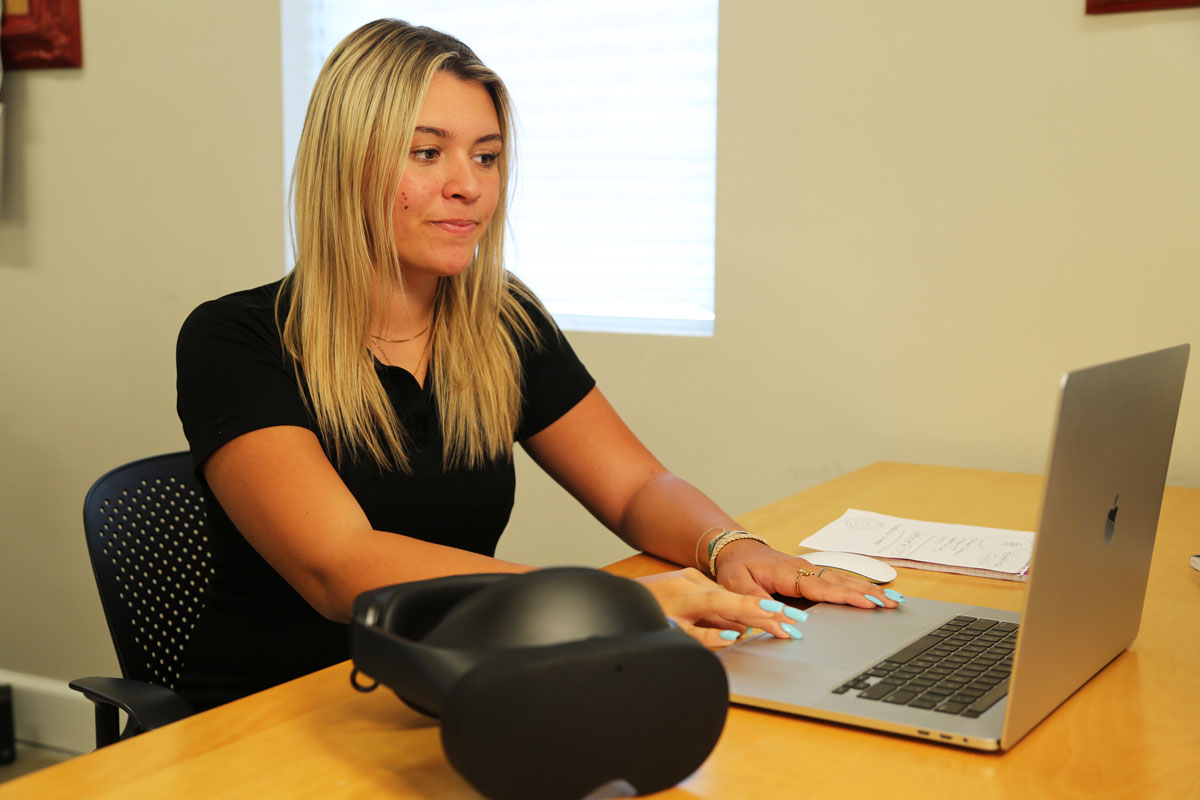
Travel back in time to Independence Hall in Philadelphia to learn about the signing of the Declaration of Independence. Discover the magic of space and the first moon landing from a spaceship’s launch pad. With Optima Academy Online’s Virtual Reality Field Trips, learning is not limited or bound by where you can travel by bus or air.
Optima Academy Online has ‘hacked’ time and space—harnessing the power of virtual reality to make previously impossible learning opportunities just a few clicks away. More than your typical school trip, our VR Field Trips provide powerful ways of engaging users on a whole new level while providing learning experiences that help you see the relevance of what you are learning.
Download the Engage App onto your computer here and install it.
Log in with your Engage credentials. Remember to check the “Remember Me” checkbox to save your login information.
Access on a Meta Quest VR Headset Managed by Optima Academy Online:
Ensure your headset is connected to Wi-Fi. If you encounter Wi-Fi issues, move closer to your router and try again.
Open the Engage app on your VR headset.
Log in with your Engage credentials. If not saved, remember to click the “Remember Me” checkbox.
VR Headset and Engage Credentials:
If you haven’t received your child(ren)’s Engage credentials or are still awaiting your VR headset, please email the Helpdesk at support@optimaed.com. Be sure to mention your specific issue: whether you have not received your Engage credentials or your VR headset.
Recommended Care of Equipment:
Avoid exposing it to extreme temperatures.
Do not allow direct sunlight on the headset lenses.
Store it in a clean, dry place.
Clean the lenses and exterior gently with a microfiber cloth.